Hueske Media
Your library portal.
Sign in to manage your library access.
Member Login
If you want to log in to change something on your account and your password does not work, use Forgot password to get a new one.
Hueske Media
Reset Password
Hueske Media
Your libraries.
Library Access
Add a Library
Hueske Media
Hueske Media
Come sail the seven seas.
eBooks, audiobooks, comics — all free, all yours.
eBooks
Sent to your Kindle
Audiobooks
Stream or download
Comics
Read in browser
Request Access
Hueske Media
Hueske Media
Set up your Kindle.
One quick setup so we can send books to your device.
1
2
3
Find your Kindle email
Every Kindle device and app has a unique email address. Here's how to find it:
Kindle Device
- Go to Settings on your Kindle
- Tap Your Account
- Find Send-to-Kindle Email
Kindle App
- Open the Kindle app
- Tap More → Settings
- Find Send-to-Kindle Email Address
Amazon Website
- Go to Manage Your Content and Devices
- Click the Devices tab
- Select your Kindle — email is listed there
It usually looks like [email protected]
Approve our sender
Amazon only accepts books from approved email addresses. You need to add ours:
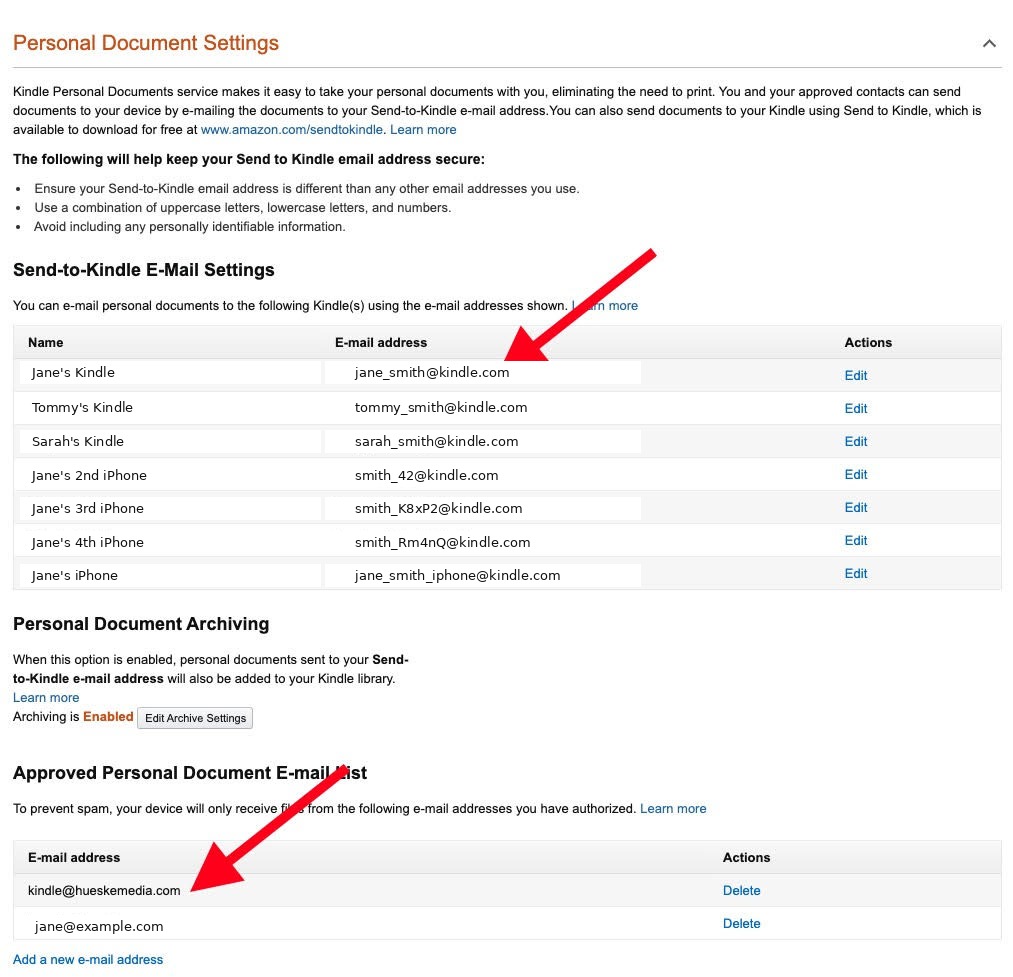
- Open Amazon — Manage Your Content and Devices
- Go to the Preferences tab
- Scroll down to Personal Document Settings
- Under Approved Personal Document E-mail List, click Add a new approved e-mail address
- Enter [email protected] and save
Here's what the page looks like:
Enter your Kindle email
Almost there! Enter the Kindle email you found in Step 1.
Hueske Media
Hueske Media
You're on the list.
We'll review your request and send your login details by email.

Request submitted
Keep an eye on your inbox — you'll hear from us soon, if we're in a giving mood.
Hueske Media